WRITTEN ARTICLE · TALENTS AND CHARACTER SETUP
How to inspect talents in WoW Forever and compare leveling builds
See another player’s talents with WoW Forever’s built-in Inspect window. Find the Talents button and learn what to compare before changing your leveling build.
Can you see another player’s talents without an addon?
Yes. WoW Forever’s built-in Inspect window has a Talents button for viewing another player’s selected talents. Wowhead documented the change on September 25, alongside a longer inspect range and a window that stays open when the inspected player moves away.
That makes it easier to look at a friend’s setup between quests. You do not need to install a talent inspection addon just to use this feature. Here is where to find the button and how to turn a quick look into a useful comparison.
In this article
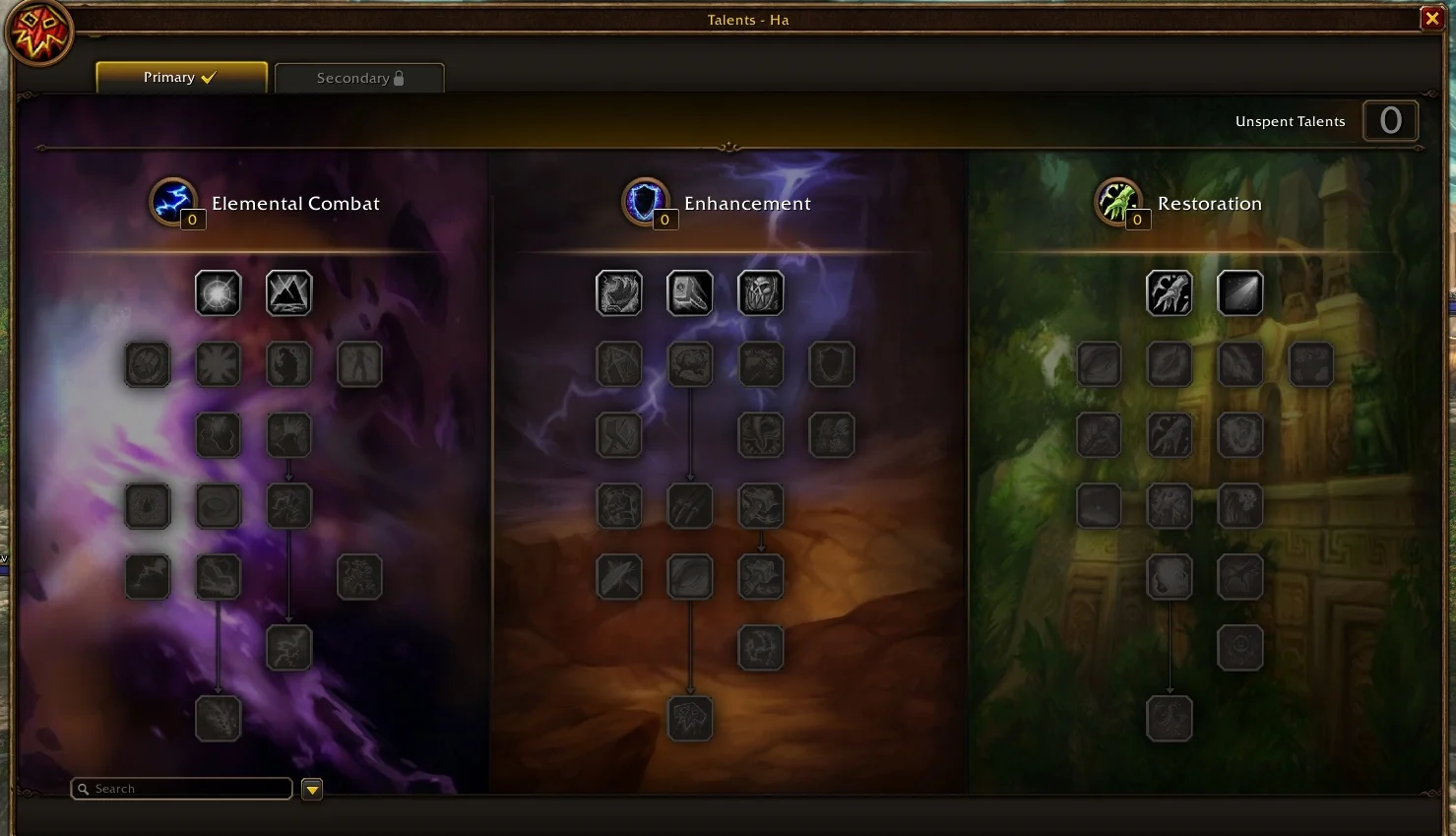
Game screenshot © Blizzard Entertainment. Image via Wowhead.
Open Inspect, then choose Talents
Inspect the character you want to look at. In the reported beta interface, the red Talents button sits near the top of the equipment window, below the character’s level and class. Select it to open their talent trees.
The screenshot below shows the exact control to look for. Check the character name before comparing anything, especially if you have changed targets since opening the window.
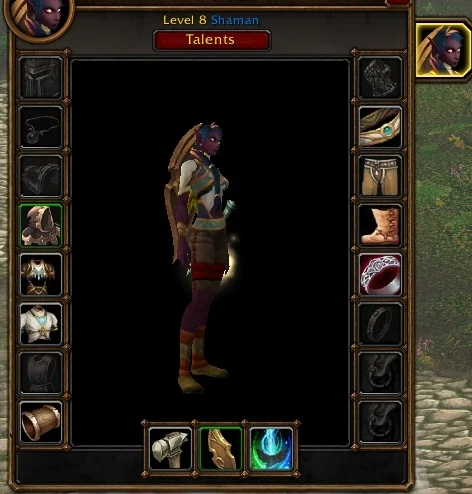
Game screenshot © Blizzard Entertainment. Image via Wowhead.
What happens when the other player walks away?
Wowhead reports that Forever increases the range at which you can inspect someone and keeps an open inspection window on screen after they move out of range. The report does not give an exact distance.
An open window is useful for taking a moment to read. If you want to check a change your friend has just made, inspect them again rather than assuming the old display has refreshed.
Compare the choices that matter to your next session
Start with what the other player is doing. A friend preparing to heal a dungeon may have different priorities from someone questing alone. Ask about the choices that interest you before treating their setup as an upgrade for yours.
Choose one or two differences to understand. Read the talent descriptions, look at the points needed to reach them and consider the abilities you actually use. A later talent can explain someone’s plan without being available to your character yet.
| Compare | Useful question |
|---|---|
| Character level | Can I reach the same talent with my available points? |
| Role and group | Is this for solo quests, healing, tanking or another job? |
| Weapons and abilities | Does the choice support what I currently use? |
| Experience playing it | What problem did this change help them solve? |
Use a talent guide when you want the longer explanation
Inspection shows a character’s allocation. Our class guides explain the trees and give a proposed order for spending points as you level. Use them to understand how a build develops, then compare that plan with the character in front of you.
The proposals are clearly labelled theorycraft. Seeing the same choices on another player does not turn them into a tested best build. If you try a change yourself, compare similar quests and pay attention to recovery time, difficult pulls and whether the character feels better to play.
Once you are happy with your setup, pick up your route where you left off. Wisp can keep supported quest steps and directions in game while you play. Talent choices remain yours.
Related reading and guides
Sources and review notes
Based on Wowhead’s September 25 report and its beta screenshots, checked September 29. The build comparison advice is our editorial guidance. We have not measured the new inspect distance or independently tested these controls.