
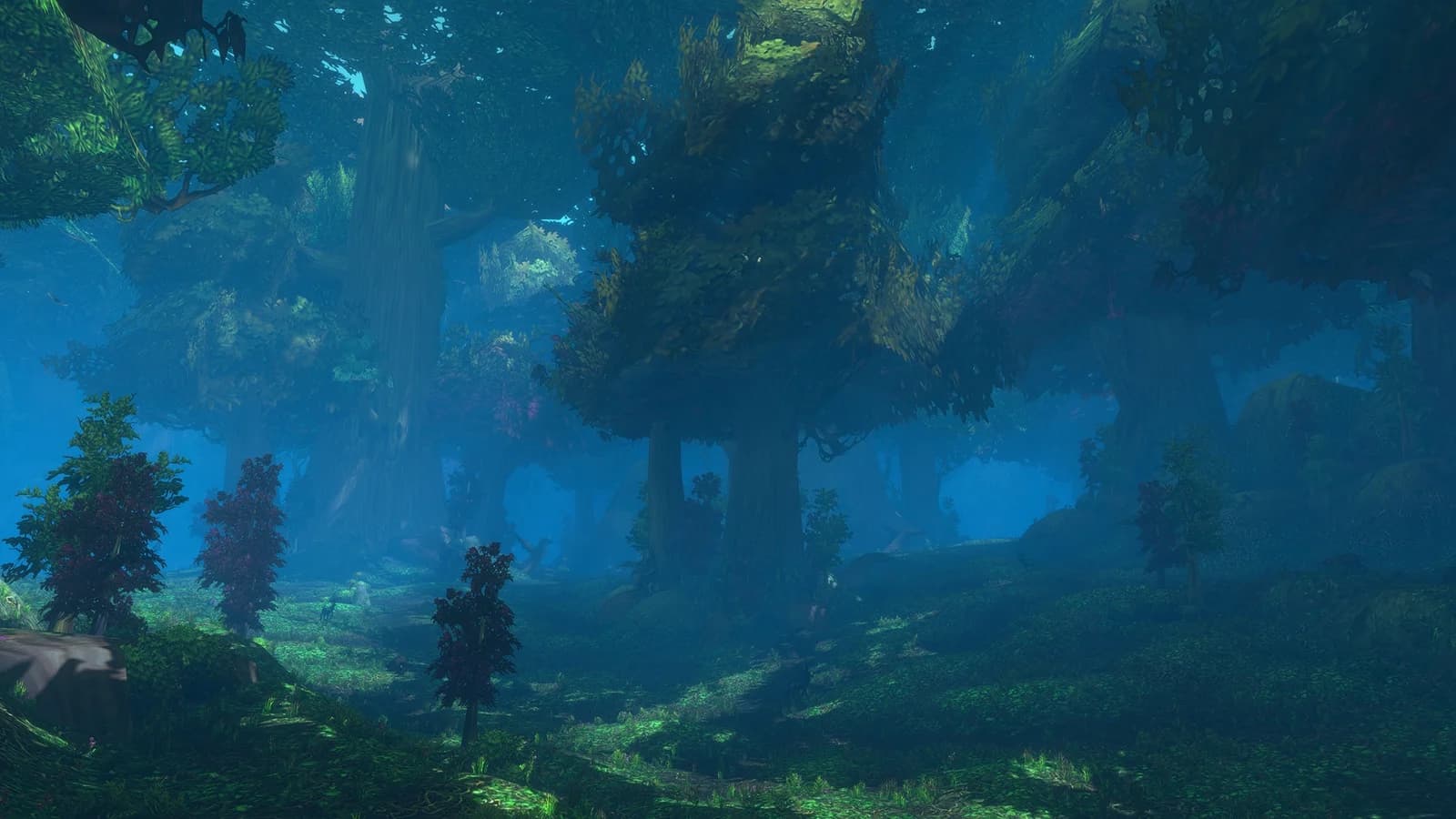
Your next destination, your way
Some journeys call for a familiar arrow. Others feel better with a little light in the world ahead. Wisp now lets you choose how your next destination appears while following the same guide.
The Wisp arrow stays the default. The new choices add an experimental Wisp in-world marker, optional WaypointUI support and a None option for a quieter screen. Changing the display keeps your guide progress and quest tracking in place.
A little light ahead. A little more detail nearby.
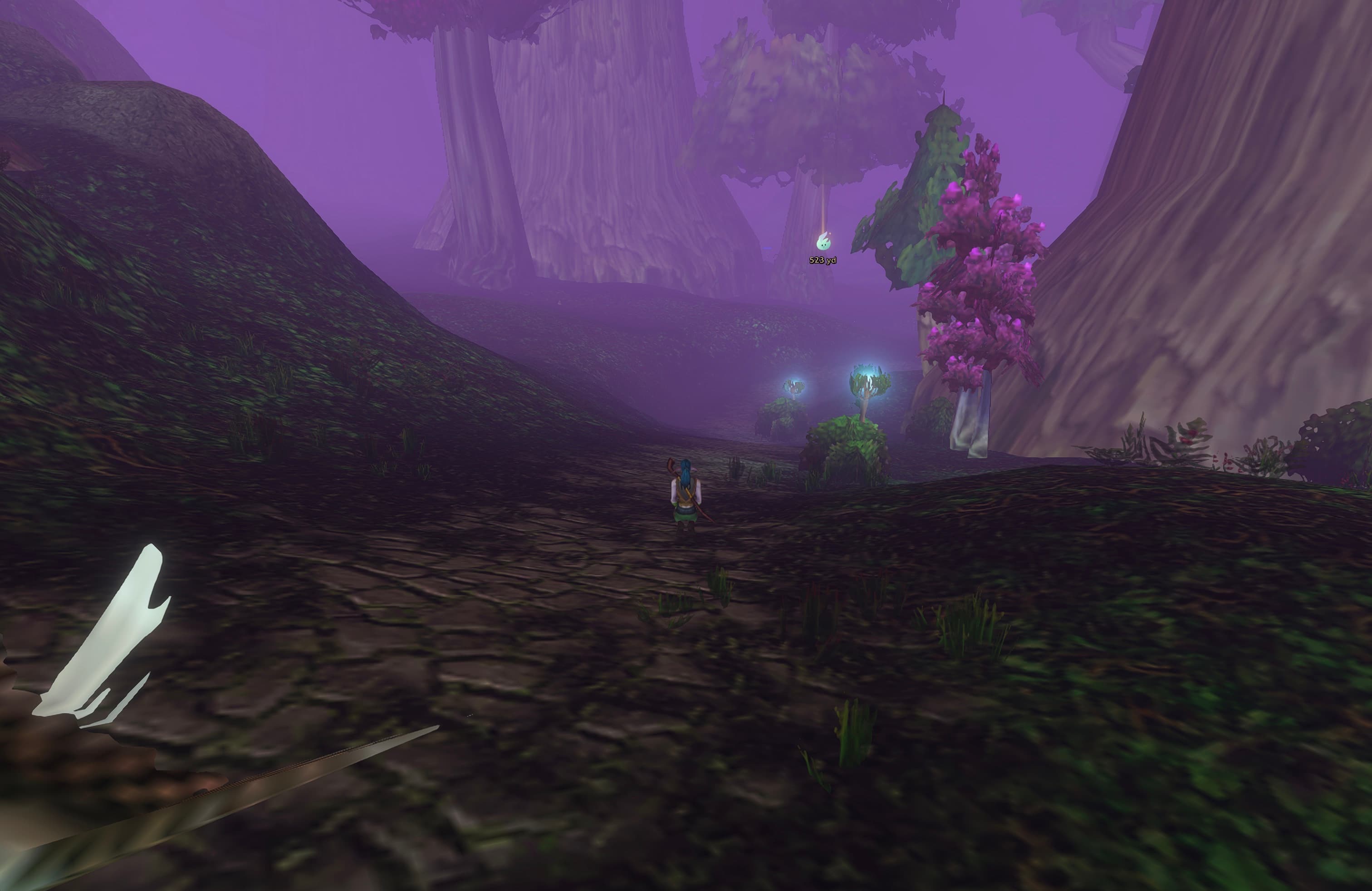
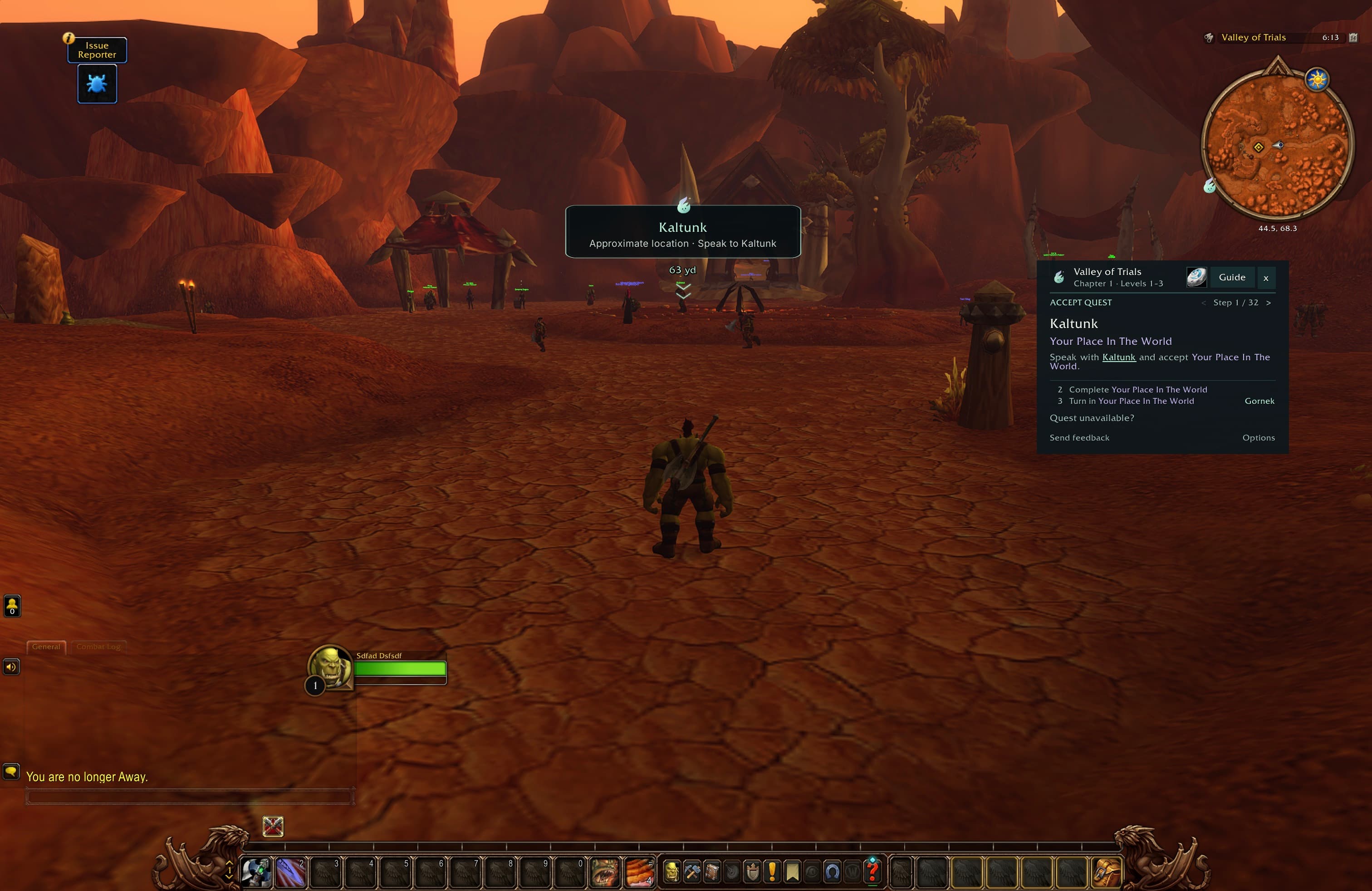
The new Wisp marker starts small: a familiar Wisp crest, a soft shaft of light and the distance to your destination. As you get closer, a dark, gently outlined card brings the destination name and next instruction into view, with two small chevrons beneath it. The card, distance and bottom pointer sit higher together, leaving more room to see who you’re approaching.
Turn-ins take on a warm gold accent. Close to an ordinary destination, the card gives way to a quieter marker so you can focus on what is in front of you. Reaching the marker does not complete a quest; it points to the guide’s map destination, rather than attaching to an NPC.
Room to breathe at the edges
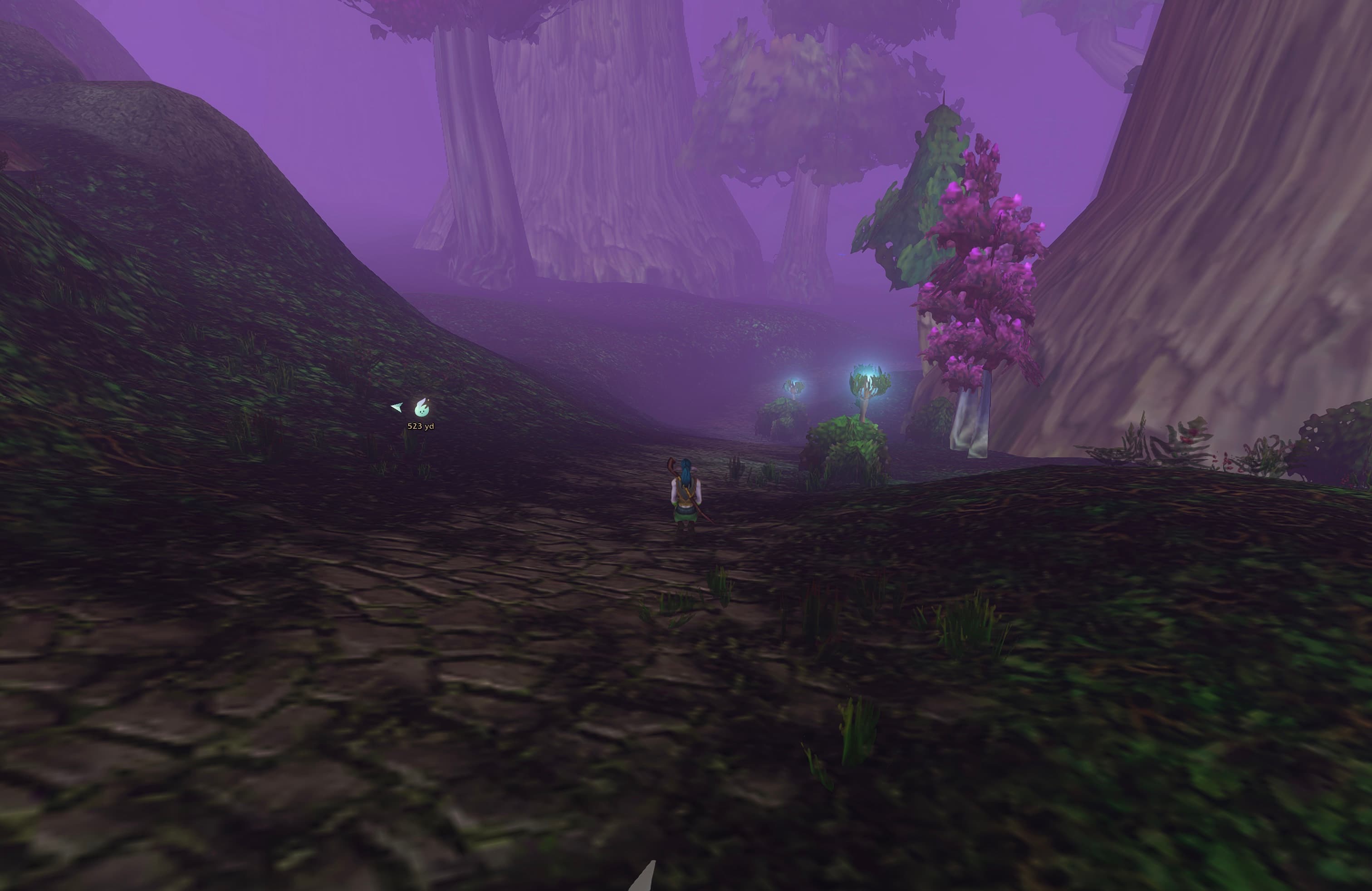
When a destination moves out of view, the Wisp marker follows an invisible circle well inside the screen. It switches to a compact crest and distance, with a small arrow beside the icon pointing towards the destination.
The circular boundary follows your screen size, keeping the marker away from the corners as you turn. There is room around the indicator and its labels as you adjust the marker’s scale.
Four choices, one place
Open Settings → Navigation → Display to choose Wisp arrow, Wisp in-world marker, WaypointUI or None. Only the settings relevant to your selected display appear below. Choose the arrow to adjust its size, position and text, or the Wisp marker to adjust its scale.
None hides Wisp’s navigation display while the guide keeps tracking your quests. Map pins and search-area shading have their own controls, so you can keep the combination that suits you.
Already using WaypointUI?
The WaypointUI choice lets Wisp supply the guide destination to that addon’s display. This release supports WaypointUI 1.7.3, installed separately. Its own appearance settings remain available through the WaypointUI settings button.
Your personal destination takes priority. If you set one, Wisp yields and offers Follow Wisp when you want to return to guide navigation. If a selected display is unavailable, Wisp explains why and falls back to its arrow.
Wisp’s own world marker currently needs WaypointUI disabled in the AddOns list. With WaypointUI loaded, choose its display or the Wisp arrow.
Try it in Wisp 0.32.0 beta
Update to Wisp 0.32.0-beta.1, then open Settings → Navigation → Display to choose your view. Your guide progress carries over. Keep your WTF folder and SavedVariables when updating.
The Wisp in-world marker remains experimental while we check more camera, movement and gameplay situations. The Wisp arrow stays the default.
The Kaltunk screenshot was captured during live navigation in the Valley of Trials. The distant beacon and screen-edge examples use staged positions and distances in WoW to demonstrate their design and spacing. These captures do not represent a completed gameplay journey.