WRITTEN ARTICLE · GAMEPAD SETUP AND QUESTING
WoW Forever gamepad setup: controls to learn before you start leveling
Enable WoW Forever’s gamepad controls, learn the quest-tracker shortcuts and plan a comfortable leveling layout using Blizzard’s new controller guide.
Where to turn on gamepad controls
Open Escape > Options > Gameplay > Gamepad. Blizzard’s November 3 guide confirms XInput-compatible controller support, with Xbox and PlayStation button icons. Support is still in beta, and chat needs a keyboard.
Before setting out, give yourself a quiet minute to arrange the actions you actually use. A comfortable first setup matters more than filling every available slot.
In this article
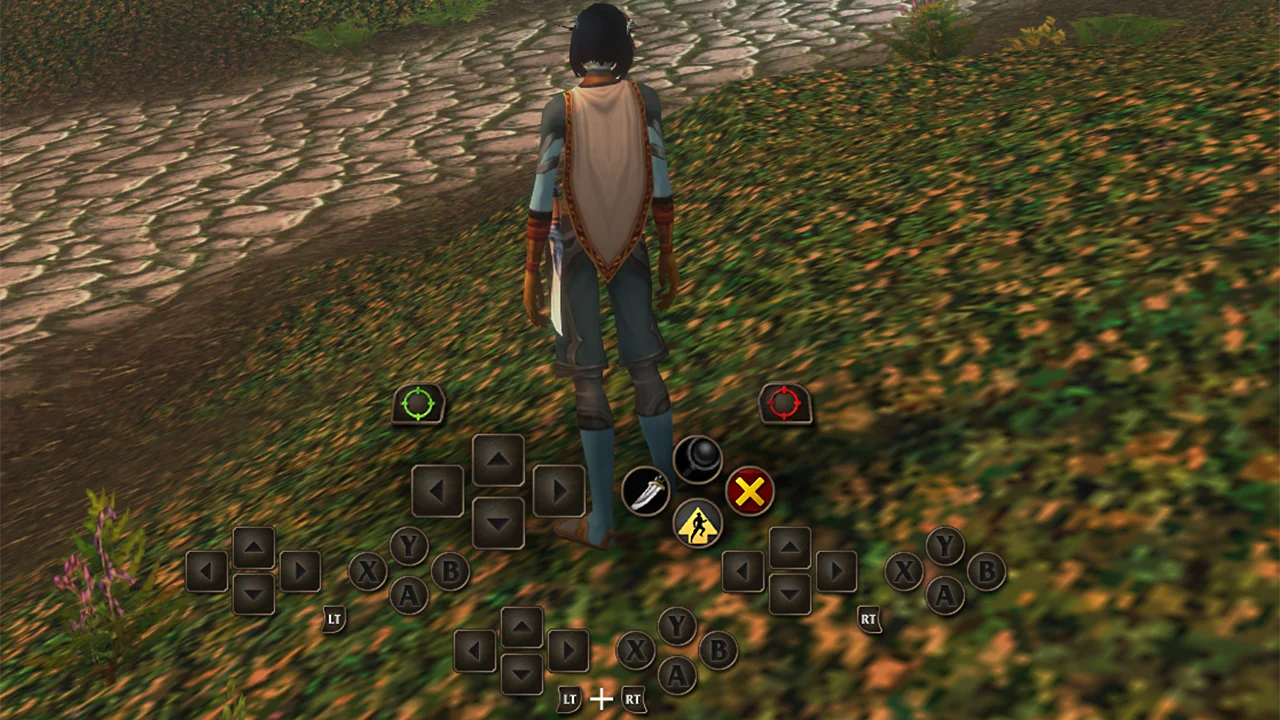
Image © Blizzard Entertainment.
The questing shortcuts worth learning first
Blizzard describes these defaults with Xbox button names. Check your on-screen legend if you change the layout.
| Action | Default control |
|---|---|
| Select a friendly or hostile target | LB for friendly, RB for hostile |
| Use another action bar | Hold LT, RT, or both |
| Open the quest tracker | LB + RB + Up |
| Open your backpack | LB + RB + B |
| Change action-bar set | LB + RB + Left or Right |
| Zoom the camera | Hold LB + RB and move the right stick |
Try a small quest loop before a difficult fight
Our suggestion is to practise the whole loop: select an enemy, use your usual attack, interact with an NPC, open the quest tracker and check your bags. Put healing, escape or defensive abilities somewhere you can reach without thinking.
Try it with the same UI layout you plan to keep. If a window covers an action-bar prompt, adjust the layout while you are somewhere quiet. That is much easier than discovering the problem halfway through a pull.
Leave spare space for abilities you learn later. You do not need a finished level-60 layout to begin your first few quests.
How much room do the action bars have?
There are three sets, each containing four bars and 28 slots. That gives 84 slots in total. Trigger combinations change the active bar, while the shoulder-button shortcut changes the set.
We would start with one familiar set for ordinary questing. Add another when you have a clear use for it, such as keeping less frequent utility actions separate.
Keep your route separate from your button layout
Gamepad controls answer how you interact with the game. A leveling guide helps you decide where to go next. You can read our written starting routes while you settle into the controls, then choose whether you want Wisp’s steps and navigation in game.
Blizzard’s gamepad announcement is not a compatibility test for Wisp. We have not verified every Wisp panel with a controller, so keep mouse and keyboard access available when trying addon windows.
Related reading and guides
Sources and review notes
Written November 4 from Blizzard’s November 3 gamepad guide. The practice checklist is our advice. Wisp controller compatibility has not been tested for this article.