WRITTEN ARTICLE · GAME INSTALLATION AND FIRST-LOGIN PREPARATION
How to install WoW Forever: Battle.net setup for returning players
Find WoW Forever in Battle.net, select the right WoW account and get ready to play. Then install your leveling addon in the correct game client.
Choose Forever and the account you actually use
To install WoW Forever, open Battle.net, select WoW: Forever and choose it in the Game Version menu. If you have several WoW accounts, Blizzard says a second dropdown lets you select the active account you want to play.
Access requires an active WoW subscription or Game Time. The Skyborne race requires the Heroic Pack or a higher upgrade. You do not need that upgrade simply to play Forever.
In this article

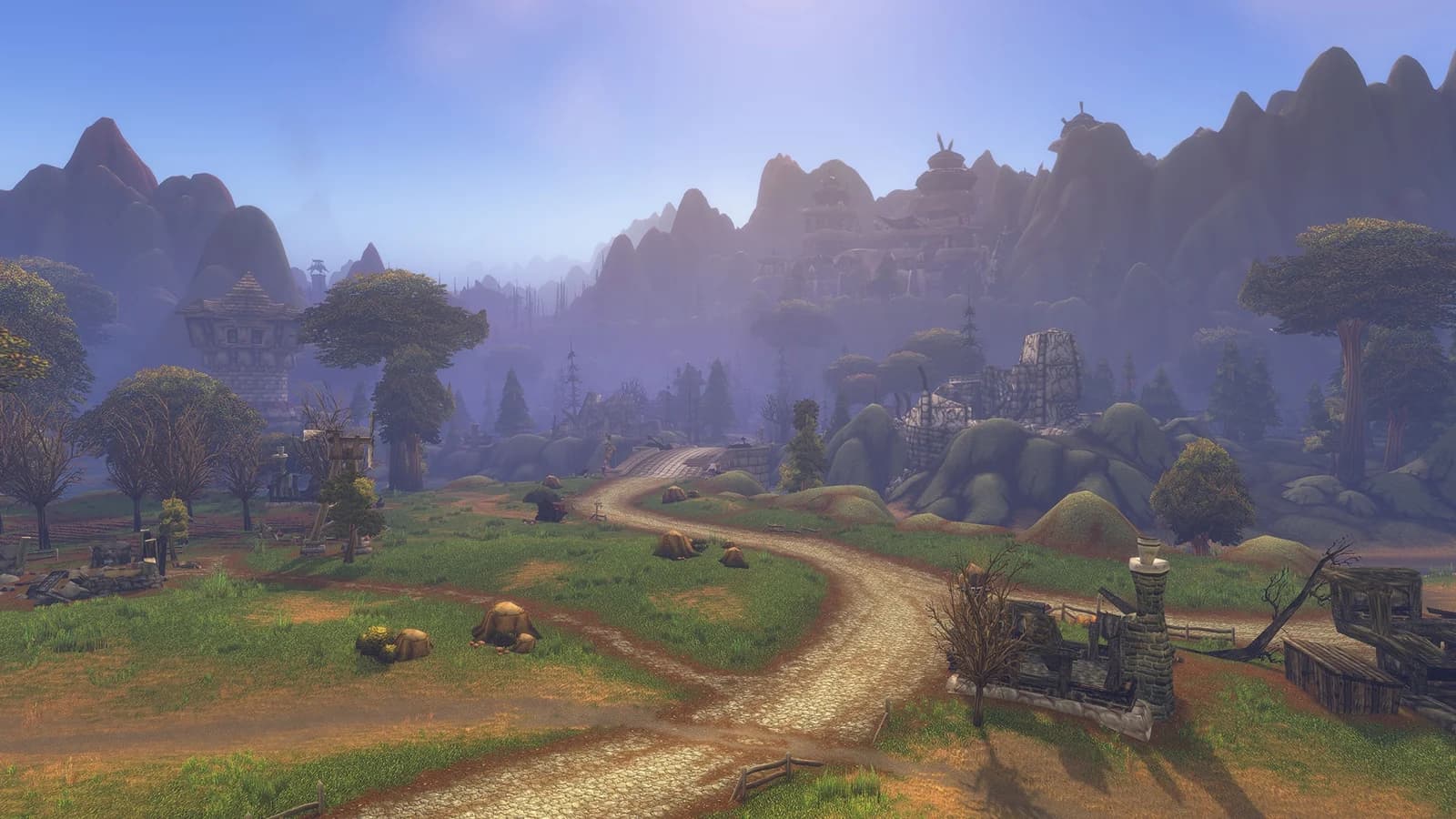
Image © Blizzard Entertainment.
The installation steps
- Download Battle.net for Windows or Mac from Blizzard and sign in.
- Open WoW: Forever and select WoW: Forever under Game Version.
- Check the account dropdown if more than one WoW account is listed.
- Choose Install and wait for the launcher to show the game is ready.
- Choose Play when installation is complete and access is available.
Sort out account access before changing files
If you cannot sign in, Blizzard directs returning players to its account-recovery tools. After recovery, check the WoW license and region. Review the official system requirements before installing.
When the launcher does not look right
Our advice is to identify which part has failed before reinstalling anything. Write down the selected game version, account and exact launcher message. Those details help you separate a sign-in problem from an installation problem.
If another WoW version opens, return to the launcher and check the selection you made. If the download is unfinished, let that process complete before troubleshooting an addon inside the game. Repeatedly moving addon folders cannot resolve a launcher login error.
For an unresolved launcher error, use Blizzard Support and include the error text. Avoid posting account details or recovery codes in a public forum. A clear description of the problem is more helpful than a screenshot containing everything on your account.
Install Wisp after you have the correct game client
Installing the game and installing a leveling addon are separate jobs. First make sure you can reach the intended client. Then follow our Wisp installation guide to put the addon in that client’s AddOns folder.
If you keep several WoW installations, check the actual game folder instead of assuming the folder you used last time is correct. Keep a note of where you installed Wisp so a later update goes to the same place.
Our installation guide covers the folder structure and the in-game check. Start there if Wisp does not appear in the addon list. You should not need to reinstall the whole game just to investigate a missing addon.
Leave yourself time to enjoy the first login
Before your group starts, agree on the character you are bringing and the route you want to follow. Make the first goal a place you can reach together, rather than a promise to hit a particular level in one sitting.
You can read your starting route while the download finishes. Once you are in game, take a moment to make the interface comfortable, check your movement keys and find the next quest. That leaves less setup to do when your friends are ready.
Related reading and guides
Sources and review notes
Based on Blizzard’s October 29 installation instructions. The troubleshooting order below is our advice. This is a game-installation guide, with a separate link for installing Wisp.